This Simple Google Tool Can Let Anyone Control Your Computer — Here’s How It Happens and How to Stop It
By Alex Barrientos
October 14, 2025 · 4 min read
Image Credit: Google
Key Takeaways
- Chrome Remote Desktop allows full system access with just a Google password and a PIN.
- Social engineering and weak PINs make it a prime target for remote-access scams.
- Remove unused remote tools and enable two-factor authentication for protection.
That harmless-looking Chrome Remote Desktop icon on your computer? It might be one of the biggest hidden security risks you’ve overlooked.
This free Google tool, designed for legitimate remote access, can hand over complete control of your computer to anyone who gains access—often through clever social engineering rather than hacking.
Most users forget it’s even installed. But for cybercriminals, it’s a silent open door into your system.
How Chrome Remote Desktop Really Works
Chrome Remote Desktop was created as a fast, simple way to control one computer from another, no matter the distance.
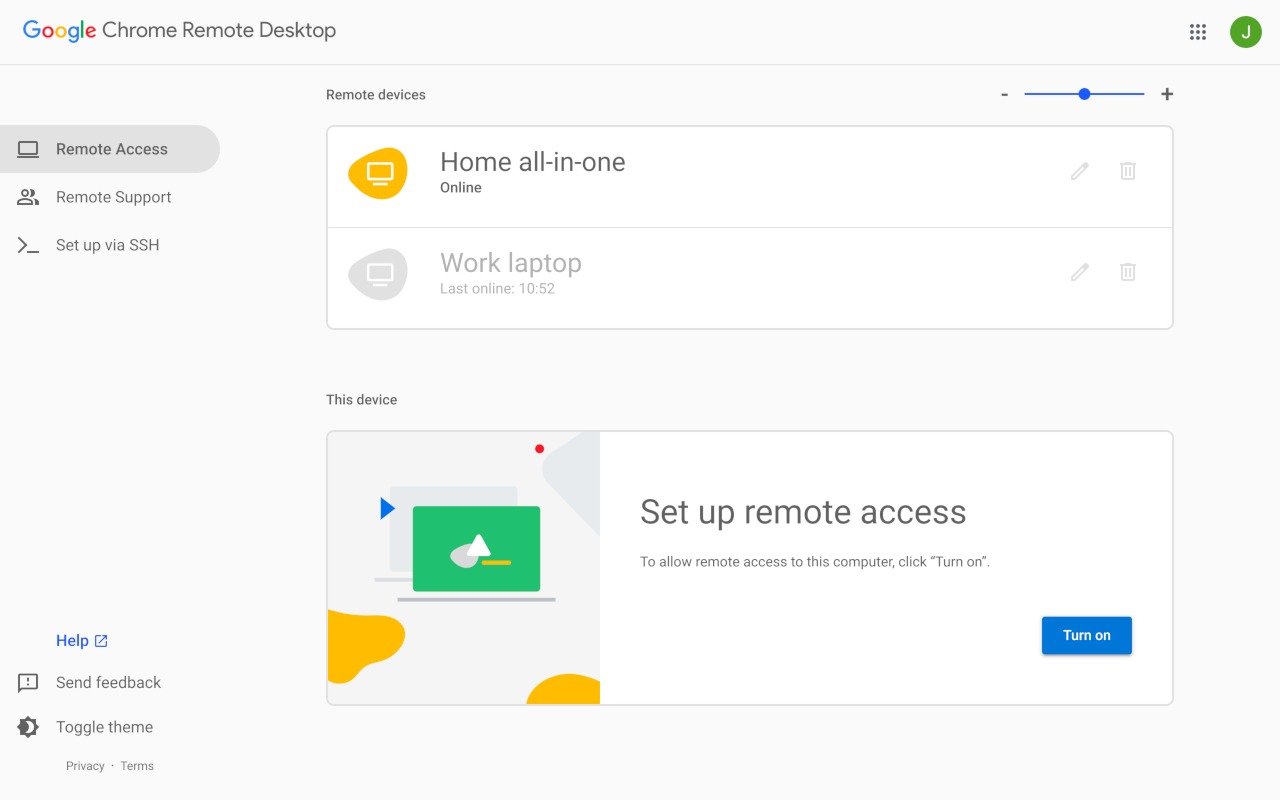
After installing the extension and signing into your Google account on both devices, you just create a six-digit PIN to secure the connection. Once that’s done, you can view and control your computer remotely — move files, manage programs, even restart it.
That convenience is the problem.
Security depends entirely on two weak points:
- Your Google account credentials (email and password).
- The PIN code that you set for remote access.
The app uses SSL/TLS encryption to protect traffic between devices — good in theory. But if an attacker manages to phish your Google password or trick you into sharing your PIN, the encryption becomes meaningless. They get full “god-mode” access — no bypassing firewalls, no malware needed.
Why Social Engineering Makes It Dangerous
Attackers rarely “hack” Chrome Remote Desktop directly. Instead, they exploit human behavior.
Here’s how most modern scams unfold:
- You get a call or pop-up claiming to be from “Microsoft Support” or “Google Security.”
- The “technician” insists your computer has serious issues and offers to help.
- They instruct you to install Chrome Remote Desktop and give them the access PIN.
- Within minutes, they’re inside your machine — browsing your files, copying data, or installing malicious scripts.
It’s disturbingly effective.
In 2025, 91% of cyberattacks begin with phishing or social engineering. According to cybersecurity research, 60% of remote-access breaches start with tools like Chrome Remote Desktop, where attackers exploit user trust rather than software flaws.
The Real-World Risks
Once a scammer gains access, your system is fully exposed.
They can:
- Browse and copy personal documents, photos, and saved passwords.
- Access banking websites and autofill data.
- Install keyloggers to capture everything you type, even after they disconnect.
- Disable antivirus tools or create new remote users for persistent access.
Worse yet, Chrome Remote Desktop lacks several enterprise-grade safeguards you’d find in tools like TeamViewer or AnyDesk Business, such as:
- Session-specific access codes (that expire automatically).
- Permission prompts for each control action.
- Comprehensive connection logs.
Even more troubling, the tool doesn’t always play nicely with third-party firewalls, leaving potential holes in your network. On public Wi-Fi, that’s a disaster waiting to happen — attackers can exploit open ports or intercept insecure traffic.
How to Protect Yourself Right Now
Here’s how to secure your system against remote-access abuse:
1. Remove Remote Access Tools You Don’t Use
- On Windows: open Control Panel → Programs → Uninstall a Program, and remove Chrome Remote Desktop, TeamViewer, AnyDesk, or any you don’t recognize.
- On macOS: drag unused remote apps to Trash and empty it.
The fewer remote tools installed, the smaller your attack surface.
2. Audit Firewall and Network Settings
- Check your firewall rules for exceptions related to “Remote Desktop,” “Chrome,” or “TCP ports 3389/5900.”
- Disable open ports unless absolutely necessary.
3. Strengthen Account and PIN Security
- Turn on Two-Factor Authentication (2FA) for your Google account.
- Use a long, unpredictable PIN (at least 8 digits, no birthdays or patterns).
- Never share your PIN over phone or email — no legitimate company will ask.
4. Use Secure Connections
If you must connect remotely:
- Always use a VPN to encrypt your entire network connection.
- Avoid public Wi-Fi for remote sessions.
5. Consider Safer Alternatives
If you genuinely need remote access:
- Use Microsoft Remote Desktop (RDP) for Windows or Apple Remote Desktop for macOS.
- Or try TeamViewer Business, which includes session codes, device management, and MFA enforcement.
These options provide better security layers designed for professional environments.
The Bottom Line
Chrome Remote Desktop is fast, free, and convenient — but it’s also dangerously simple.
Its biggest weakness isn’t the technology itself, but how easily people can be manipulated into granting access. Cybercriminals rely on curiosity, urgency, and fear to trick users into handing over their systems voluntarily.