

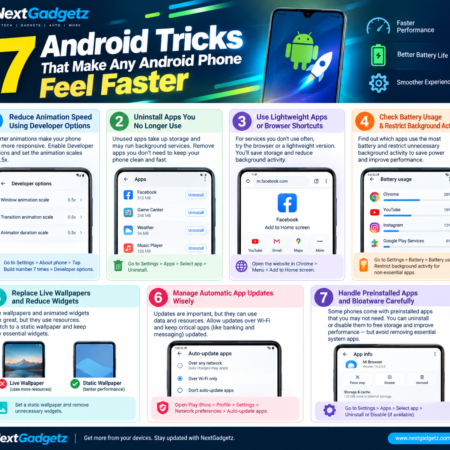
7 Android Tricks That Make Any Android Phone Feel Faster in 2026
Is your Android phone becoming slow, laggy, or less responsive? Do apps take too long to open, or does switching between screens feel frustrating? Before spending money on a new smartphone, there are several simple things you can try to improve your current phone’s everyday performance.
Android phones can feel slower over time for several reasons, including limited storage, resource-intensive apps, background activity, and software updates. Fortunately, you may be able to improve the experience by changing a few settings and removing unnecessary digital clutter.
In this guide, NextGadgetz explains seven practical Android tricks that can help make your phone feel faster. These tips work as a starting point for many Android devices, including Samsung Galaxy, Xiaomi, Redmi, Motorola, OnePlus, and Google Pixel phones. However, the exact settings and available features may vary depending on your Android version and manufacturer.
1. Reduce Animation Speed Using Developer Options
One of the easiest ways to make an Android phone feel more responsive is to reduce its animation duration. Android uses animations when opening applications, switching between screens, and returning to the home screen.
These effects make the interface look polished, but shorter animations can make navigation feel quicker, particularly on phones that already have some performance limitations.
How to change Android animation settings
Follow these steps:
- Open the Settings app on your Android phone.
- Select About phone.
- Find the Build number option. On some devices, you may need to open Software information first.
- Tap Build number seven times.
- Enter your PIN or password if your phone requests it.
- Return to Settings and open Developer options. Depending on your device, this may be under System or Additional settings.
- Find Window animation scale, Transition animation scale, and Animator duration scale.
- Set all three options to 0.5x.
The exact menu names may differ between manufacturers. If you cannot find an option, use the search function in Settings.
Setting the animation scales to 0.5x makes the animations shorter while preserving some visual effects. You can also turn them off, although this may make the interface feel less natural.
Why this helps: Shorter animations reduce the time you spend waiting for visual transitions. They do not increase your processor’s actual computing power, but the phone can feel quicker to use.
You can also return these settings to their default values whenever you want. Avoid changing other Developer options unless you understand what they do.
2. Uninstall Apps You No Longer Use
Take a look at the applications installed on your phone. You may find apps for services you no longer use, games you stopped playing months ago, or companion apps for devices you no longer own.
Keeping unnecessary applications installed can consume storage space. Some apps may also run background services, synchronize information, or send frequent notifications.
Removing apps you do not need can free up storage and reduce unnecessary background activity.
How to remove unused apps
- Open Settings.
- Select Apps or Apps management.
- Review the list of installed applications.
- Select an app you no longer need.
- Tap Uninstall, if available.
- Repeat the process for other unnecessary apps.
You can also press and hold an app icon on your home screen and select Uninstall when that option is available.
On some Android phones, you may find an option to automatically archive unused applications. This can help free up space while retaining the possibility of restoring an app later.
Which apps should you remove?
Consider uninstalling games you no longer play, shopping apps you rarely use, duplicate utility apps, and companion applications for old accessories.
However, do not remove applications simply because you do not recognize their names. Some system components are necessary for calls, notifications, security, and normal phone operation.
Pro tip: Review your installed apps every two or three months. A quick cleanup can help you maintain a more organized phone without deleting personal photos, messages, or important documents.
3. Use Lightweight Apps or Browser Shortcuts
Some applications use substantial storage and background resources, especially on older phones with limited memory.
For services that work well through a mobile website, using your browser instead of installing a separate application may be a useful alternative.
For example, you might access a social network, shopping website, or online service through Chrome or another trusted browser. You can then add the website to your home screen for convenient access.
How to add a website to your home screen
- Open Chrome or your preferred browser.
- Visit the official website of the service you want to use.
- Open the browser menu.
- Select Add to Home screen or Install app, depending on the website and browser.
- Follow the instructions displayed on your phone.
The shortcut gives you a convenient way to access the website without necessarily installing a full application.
Some websites also offer lightweight versions or progressive web apps. Their available features depend on the service.
Is using a browser always better?
Not necessarily. A website may lack features available in its full application, such as certain offline functions, background notifications, or device integrations.
For example, a banking app may offer security features that you should not expect to be identical on its website. Always use the official website and verify the address before entering personal information.
Why this helps: Browser shortcuts can reduce the number of installed apps and may reduce storage requirements. The actual performance benefit depends on the website, browser, and your phone.
4. Check Battery Usage and Restrict Unnecessary Background Activity
Have you noticed that your phone loses battery even when you are barely using it? Some applications may be running background tasks more frequently than necessary.
Background activity can include synchronizing data, refreshing content, checking for updates, and processing notifications. Excessive activity from a poorly behaved app can affect battery life and, in some situations, responsiveness.
Android includes battery-usage tools that help you identify applications consuming significant power.
How to check battery usage
- Open Settings.
- Select Battery.
- Open Battery usage or the equivalent option on your device.
- Review the applications using the most battery.
- Select an app to view the available usage details.
- If an unnecessary app is using excessive background resources, check whether you can restrict its background activity.
On some phones, you can open Settings, select Apps, choose the relevant app, and review its Battery or App battery usage settings.
Menu names and available controls vary by manufacturer.
Which apps should you restrict?
You may consider restricting an unnecessary game, an infrequently used shopping app, or another nonessential application that repeatedly performs background tasks.
Be careful with messaging apps, email applications, smartwatches, health-related devices, alarm applications, and security tools. Restricting them may delay notifications, interrupt synchronization, or affect important functions.
Do not assume that every app at the top of your battery-usage list is malfunctioning. Some applications naturally consume more power because you use them frequently.
Best practice: Change one setting at a time and observe the result. If an app stops working as expected, restore its previous battery settings.
5. Replace Live Wallpapers and Reduce Unnecessary Widgets
Live wallpapers and animated home-screen widgets can make an Android phone look attractive. However, some of these features perform continuous animations, update information, or use network resources.
Their impact varies significantly. A simple live wallpaper may have little effect on a modern phone, while poorly optimized widgets or animated backgrounds can contribute to unnecessary resource use.
If your device feels sluggish, try simplifying your home screen.
How to simplify your Android home screen
Step 1: Use a static wallpaper. Choose a regular image instead of an animated background.
Step 2: Remove unnecessary widgets. Press and hold widgets you rarely use and remove them from the home screen.
Step 3: Reduce excessive shortcuts. Keep your most frequently used applications easily accessible.
Step 4: Review third-party launchers. If you use a heavily customized launcher with many animations, try the manufacturer’s default launcher to see whether responsiveness improves.
Removing a widget from the home screen does not necessarily uninstall its application.
Will this make every phone faster?
Not always. Modern Android devices can handle many visual effects efficiently. Nevertheless, simplifying your home screen is an easy troubleshooting step if you experience stuttering, excessive battery drain, or delays during navigation.
It also makes frequently used apps easier to find.
6. Manage Automatic App Updates Without Ignoring Security
Keeping applications updated is important for security, compatibility, bug fixes, and new features. However, downloading or installing updates can temporarily use storage, network bandwidth, and processing resources.
If your phone frequently becomes busy while several applications update, you can review how updates are scheduled.
How to manage Google Play app updates
- Open the Google Play Store.
- Tap your profile picture.
- Open Settings.
- Look for Network preferences.
- Select Auto-update apps.
- Review the available update options and choose the one that suits your needs.
The exact options may vary by Play Store version.
You can choose a suitable network preference, such as updating over Wi-Fi, to avoid unnecessary mobile data usage. If your phone supports it, you may also manage updates manually.
Should you disable all automatic updates?
For most users, completely disabling automatic updates is not the best choice. Older application versions can contain security vulnerabilities, and delaying important updates may put your data at risk.
Instead, consider allowing updates over Wi-Fi and checking the Play Store regularly. Keep banking apps, authentication apps, browsers, messaging applications, and other security-sensitive software updated.
Also install Android security updates when they are available for your device.
Remember: Updating apps does not automatically make your phone slower. Updates frequently fix bugs and improve performance. The goal is to manage update activity conveniently, not to avoid essential security fixes.
7. Handle Preinstalled Apps and Bloatware Carefully
Some Android phones come with preinstalled applications that you may never use. These applications are sometimes described as bloatware.
Depending on the manufacturer and app, you may be able to uninstall the application, disable it, or remove it from your home screen. Other preinstalled components are required for the device to function correctly.
Removing unnecessary software can help free storage, although disabling an app does not guarantee a noticeable improvement in speed.
How to disable an unwanted preinstalled app
- Open Settings.
- Select Apps or Apps management.
- Find the application you want to review.
- Open its App info page.
- Check whether an Uninstall or Disable option is available.
- Read any warning displayed before proceeding.
If an application has a normal uninstall option and you do not need it, uninstalling it may be the simplest solution.
If the app offers only Disable, make sure you understand its purpose before using that option. Some system apps support important functions even if their names are unfamiliar.
What about advanced tools?
Advanced Android users sometimes use tools such as Shizuku with compatible applications to manage or freeze selected apps. These approaches may require additional permissions, wireless debugging, or other setup steps depending on the tool and device.
They are not necessary for most users.
Avoid freezing random system packages, following unverified lists, or granting elevated permissions to unknown applications. Incorrect changes can break notifications, connectivity, updates, or other device functions.
If you are inexperienced, stick to the standard uninstall and disable options provided by your phone.
Our recommendation: Start with ordinary app management. Advanced tools should only be considered when you understand the risks and have reliable instructions for your specific device.
Bonus Tips: Other Ways to Improve Android Performance
The seven tricks above are useful starting points, but a few additional habits can also help.
Keep enough storage space available
Open Settings and check your storage usage. If the phone is almost full, remove unnecessary downloads, duplicate files, and apps you no longer use.
Before deleting anything, back up important photos, videos, and documents. You can also use Android’s built-in storage recommendations or a trusted file-management application.
There is no universal free-storage percentage that guarantees better performance, but avoiding a nearly full device can help prevent storage-related problems.
Restart your phone occasionally
Restarting your phone can resolve some temporary software glitches and stop processes that have become unresponsive. It is a useful troubleshooting step if your phone suddenly starts behaving unusually.
However, restarting is not a permanent solution for every performance problem.
Avoid unnecessary cleaner and booster apps
Be cautious about applications that promise to dramatically increase speed with one tap. Some cleaner apps run continuously, display intrusive advertisements, or perform tasks that Android already manages.
Use the built-in storage and battery settings first. Install additional utilities only when you have a specific need and trust the developer.
Check for software updates
Your phone’s manufacturer may release updates that fix bugs, improve compatibility, or address performance issues. Check Settings for available system updates and follow the manufacturer’s instructions.
Keep in mind that update availability depends on your device model, region, and support period.
Frequently Asked Questions
1. How can I make my Android phone faster without installing an app?
Start by reducing animation scales to 0.5x, uninstalling unnecessary apps, checking storage space, and reviewing battery usage. These steps use Android’s built-in features and do not require a third-party booster application.
2. Does reducing animation speed improve actual phone performance?
Reducing animation duration makes transitions shorter, so the phone can feel more responsive. It does not increase the processor’s actual speed or guarantee higher gaming performance.
3. Can too many apps make an Android phone slow?
A large number of installed apps can consume storage, and some apps may perform background tasks. However, installed app count alone does not determine performance. The apps’ resource usage and the phone’s available storage and memory also matter.
4. Should I clear the cache to speed up Android?
Clearing an individual app’s cache may help resolve certain app problems or free temporary storage. However, routinely clearing every app’s cache is not a guaranteed speed improvement. Some cached data will need to be downloaded or generated again.
Avoid selecting Clear storage or Clear data unless you understand the consequences, because this can remove local app data or sign you out.
5. Is Developer Options safe to use?
Enabling Developer Options is generally safe, but changing unfamiliar settings can affect device behavior. If your only goal is to shorten animations, change the three animation-scale settings and leave the other options untouched.
6. Why is my Android phone still slow after trying these tricks?
Your phone may have limited memory, aging hardware, a nearly full storage drive, a problematic app, or a software issue. If performance remains poor, install available updates, check for overheating, review storage usage, and consult your manufacturer’s support guidance.
A factory reset may help with certain software problems, but it erases local data. Back up your important information before considering that step.
Final Thoughts
You do not always need to buy a new smartphone when your current Android device begins to feel slow. Simple changes, such as reducing animation duration, uninstalling unused applications, simplifying your home screen, and managing background activity, can improve the everyday experience on some devices.
Start with the easiest changes and test them one at a time. Avoid disabling essential services or installing questionable speed-booster apps, and continue to install important security updates.
At NextGadgetz, our goal is to help readers get more value from the technology they already own.
Which of these Android tricks helped your phone the most? Share your experience in the comments and tell us which Android phone you use.
Disclaimer: Android settings and features vary by manufacturer and software version. The tips in this guide are general suggestions and do not guarantee a specific performance improvement on every device.

Other Articles

Tesla Roadster India Launch: Can This Electric Car Really Fly?

No Comment! Be the first one.